


Build your assistants
Create an assistant from a business website, check preparation and update how it responds.
“List my assistants and show which ones are ready.”
 CHIRPS MCP
Manage assistants, update their knowledge and review customer activity from the AI application you already use.
Add Chirps as an MCP connection. Sign in, choose your workspace, then ask for what you need in the conversation.
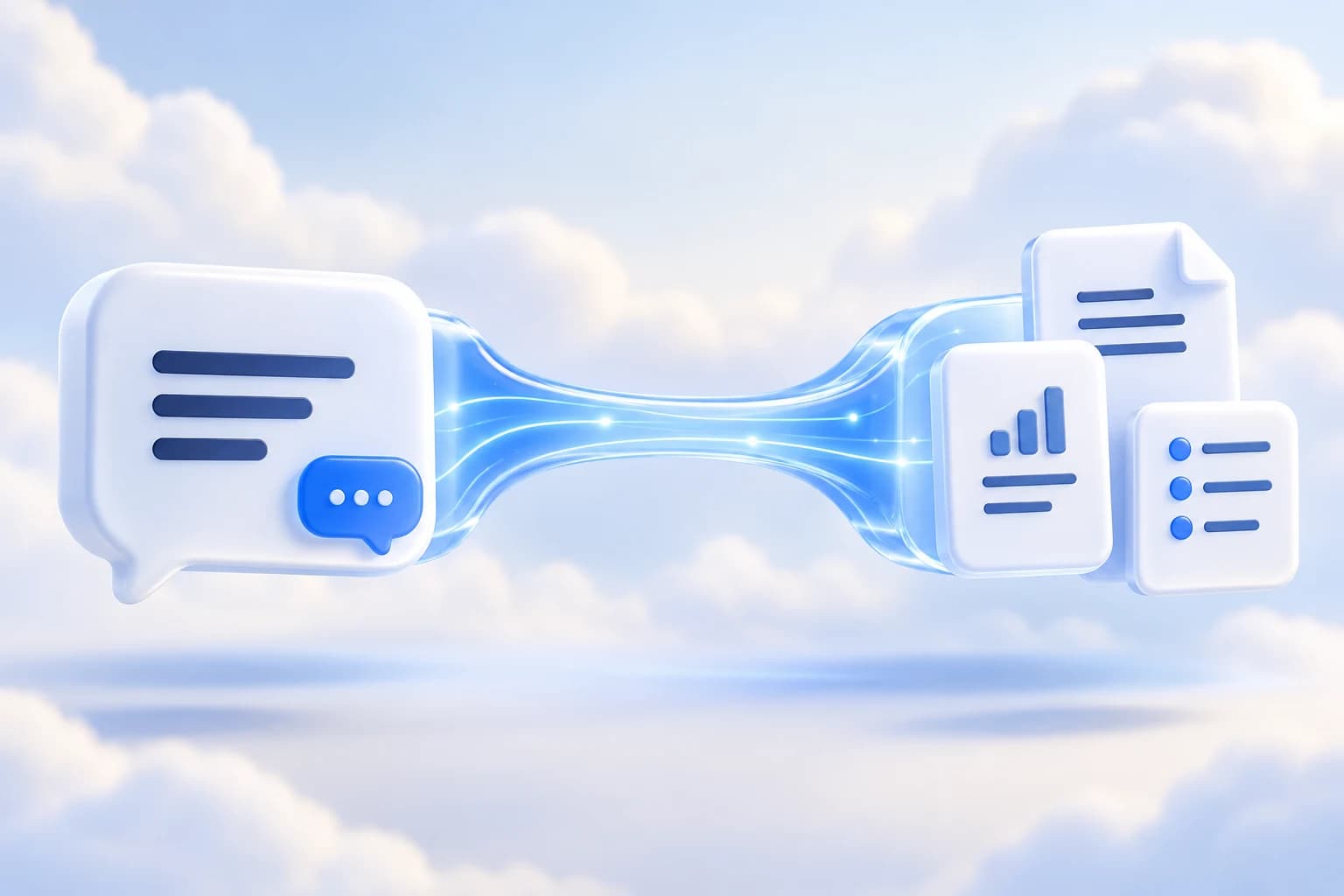
How the connection works
MCP stands for Model Context Protocol. It lets your AI application discover Chirps tools and use them with the access you approve.
“Show me recent leads in my Chirps workspace.”
Chirps checks your connection and workspace permissions, then returns the requested records.
Your AI app uses the returned information to answer you and help with the next step.
You approve one workspace per application. Existing owner or administrator permissions and plan limits still apply. Review changes before asking your AI app to save them.
What you can do
Create an assistant from a business website, check preparation and update how it responds.
“List my assistants and show which ones are ready.”
Review saved knowledge and add approved business information for your assistant to use.
“Add these opening hours to my assistant’s knowledge.”
Read saved customer conversations and use your AI app to help spot recurring questions.
“Show me the recent conversations for this assistant.”
Review captured leads and update a lead’s status after your team follows up.
“List recent leads, then mark this one contacted.”
Read bookings and workspace analytics without switching to another dashboard.
“Show my workspace’s upcoming bookings.”
Get the website embed snippet and inspect an assistant’s installed connector tools.
“Give me the installation snippet for my assistant.”
Set it up in your AI app
The connection is added in the AI application’s MCP or connector settings. Your Chirps sign-in comes afterward.
MCP server URL
https://chirps.cc/api/mcpStreamable HTTP · Sign in with your Chirps account
Sign in to connect your workspace
Your AI app registers the connection automatically. Chirps asks you to sign in and choose a workspace. Live connections in the apps below are still awaiting verification.
In Claude, open Customize → Connectors, then Add custom connector. Team administrators add it through organization settings.
Name the connector Chirps. Paste https://chirps.cc/api/mcp as the remote server URL.
Choose sign-in authentication, then Register automatically under OAuth client. Claude registers its connection with Chirps during setup.
Connect, sign in to Chirps and approve one workspace. Enable Chirps in the conversation’s Connectors menu, then ask it to list your assistants.
Instructions follow the application’s documentation. A live Chirps connection must still be verified.
Official setup guideA few things to know
Chirps handles assistant management and customer activity through this connection. Payments, phone purchases and executing installed connector actions use the dashboard.
Manage connected appsA remote connection to Chirps’s tools. Your AI app can call those tools to read or change the workspace you approve. Chirps handles the action and sends the result back into that conversation.
Chirps hosts the MCP server. You configure the connection in your AI application. Claude Code and Cursor use their own local configuration; Claude’s remote connectors use its connector settings.
The standard setup uses automatic OAuth registration. Add the server URL, then follow your AI application’s Chirps sign-in flow. An existing client ID is only needed for a custom registration or an application that cannot register automatically.
The AI application stays the interface you speak to. It uses Chirps tools on your behalf. Your website assistant continues serving customers through its widget and other configured channels.
The client needs remote Streamable HTTP and OAuth sign-in with automatic registration, or an existing registered client. The guides below describe documented configuration paths; live compatibility has to be verified for the application and version you use.
Disconnect the application from Chirps’s Connected apps page. Future requests are blocked. Completed changes and information already shared with the other provider remain subject to their normal records and privacy practices.
Choose your AI app, add the server and sign in to your Chirps workspace.
Set up your connectionConnected apps may receive customer information you request. Review the app’s privacy terms and Chirps’s Privacy Policy.